Shopping Cart
Identify your Mac in 30 seconds: model number, serial number, compatible parts
Before ordering a battery, a display or a keyboard, one question matters: what exactly is your Mac? Two references are enough — the A#### model number and the serial number. We’ll show you where to read them, then how to get the right part in three clicks thanks to the model selector on our homepage, which shows you only the parts compatible with your machine.
The essentials
A Mac isn’t identified by its size or a “roughly” guessed year. The right part depends on a precise identifier. The most useful one is the model number — a code that starts with the letter A followed by four digits (for example A1706). The serial number, meanwhile, is unique to your machine: it helps you find the exact model when you’re not sure. Once the model is known, our three-click selector — at the top of the homepage — does the rest: Family, Model, Part, and you’re left with only the compatible parts in front of you.
Three steps, from your Mac to the right part
Find the model number, double-check with the serial number if needed, then let the homepage selector do the sorting.
Step1
Read the A#### model number underneath your Mac
Turn your MacBook over: in tiny print, near the hinge or the regulatory text, you’ll see “Model A1706” (or A1502, A2338, A1466…). On an iMac, it’s under the stand; on a Mac mini, underneath the case. No Mac at hand? The same code is on the original box, next to the barcode.
Tip: it’s the only code that starts with an “A” followed by 4 digits.Step2
Not sure? Use the serial number
Click the Apple menu (top left) then About This Mac: the model, year and serial number are displayed. The same serial number is engraved underneath the case. It’s not something you type into our search — it’s unique to your machine — but it confirms the exact model, from which you can work out the A#### number.
Privacy reminder: keep your serial number to yourself, don’t publish it.Step3
Let the homepage selector do the sorting (3 clicks)
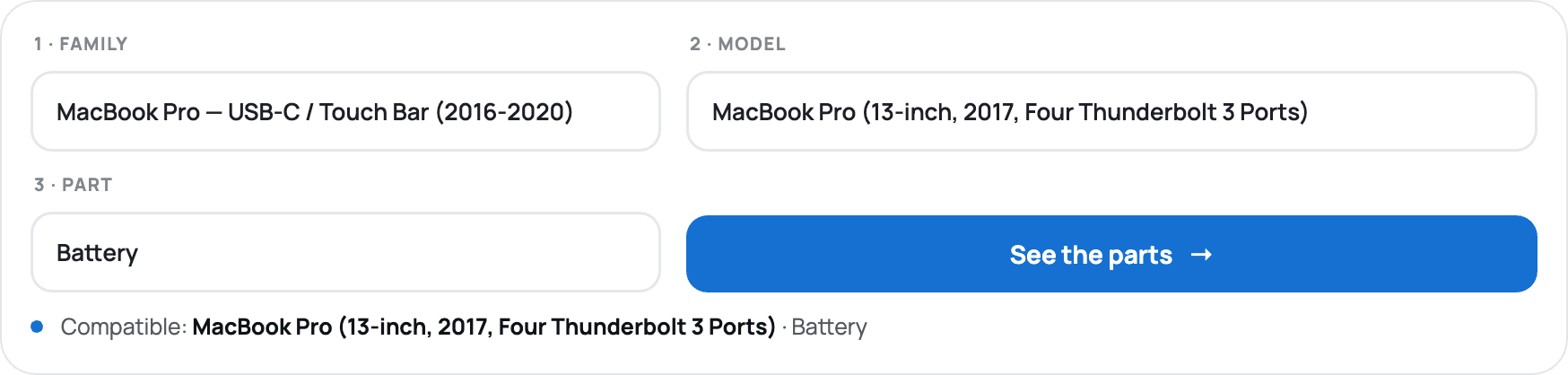
Right at the top of the placedumac.com homepage, under “The exact part for your Mac”, a selector guides you through three menus: 1 · Family (MacBook Pro, MacBook Air, iMac…), 2 · Model (the screen then shows only the models in that family, with their year and A#### code), then 3 · Part (battery, display, keyboard, trackpad, case, flex cable…). Click “Find my parts” and you get only compatible items, guaranteed model by model.
Prefer to type? The search bar works too: enter your code (e.g. A1706) or the model name (“MacBook Pro 13 2017”).
▲ Check before ordering
The same A#### number can cover several years
Apple sometimes reuses the same code across several model years. A1534, for example, refers to the 12″ MacBook from 2015, 2016 and 2017 — and some parts (battery, trackpad) differ from one year to the next. On each product page, check the “Compatible with” line and the year shown in the title to pick the right version. If in doubt, your serial number (step 2) settles it.
Model number or serial number: which one to use?
To search for a part
The A#### model number
This is the reference used to search. It groups together all Macs of the same model: it’s what the selector uses at the “Model” step, and it also surfaces parts if you type it into the search. Engraved underneath the device and on the box, it always starts with “A”.
To settle a doubt
The serial number
This is what identifies your machine. It gives the exact model and year via “About This Mac”. You don’t type it into the shop: it’s used to confirm, then to find the right A#### number.
Common misconception
✕ False
“I need my serial number to order a part.”
No: to find and order a part, the A#### model number is enough — it’s what describes compatibility. The serial number is only used to identify the model if you’re unsure, and it stays private. You never need to share it to buy.
The tip
to remember
to remember
If there’s only one thing to remember
Find your model, let the selector do the rest.
The small A#### code engraved underneath your device is the key to everything. Enter it into the three-click selector on our homepage (Family → Model → Part) and you’ll see only your parts: no more doubt about compatibility, no more returns for “wrong model”. And if you’re torn between two years, the serial number settles the last doubt.
Your turn
Know your model? Find your parts in three clicks.
Head to the homepage, choose your Mac in the selector (Family → Model → Part), and browse the compatible parts — all tested and guaranteed, new and refurbished alike.
Identifying your Mac: your questions
How do I find the exact part for my Mac on the site?
Use the selector at the top of the homepage (“The exact part for your Mac”): choose the Family, then the Model, then the Part, and click “Find my parts”. You’ll only get parts compatible with your model. The search bar works too if you’d rather type your A#### code.
Where is the A#### model number on my Mac?
On a MacBook, it’s engraved in small print underneath the case, near the hinge (e.g. “Model A1706”). On an iMac it’s under the stand, on a Mac mini underneath the case. It’s also on the original box, next to the barcode.
How do I see my Mac’s serial number?
Click the Apple menu at the top left, then “About This Mac”: the model, year and serial number are displayed. The same number is engraved underneath the device.
Can I type my serial number into the site’s search?
No, it won’t help: the serial number is unique to your machine and doesn’t match any product page. Type the A#### model number (or the model name) — that’s what surfaces compatible parts.
Two Macs share the same A#### number: how do I choose the right part?
Some codes cover several years (A1534 covers 2015, 2016 and 2017, for example). Check the year in the product title and the “Compatible with” line; if needed, your serial number confirms the exact year.
I can’t find my model in the search, what should I do?
Use the selector (Family → Model → Part) instead of typing, or try the model name instead of the code (e.g. “MacBook Air 2018”). If you still can’t find the part, contact us with your model number: we’ll check compatibility for you.
Place du Mac guide — the Apple model number starts with “A” followed by four digits (e.g. A1706) and can be read underneath the device or on its box; the serial number is shown in “About This Mac” and remains personal data. The same A#### number can cover several years: always check the year on the product page. Apple, Mac, MacBook and iMac are trademarks of Apple Inc.; Place du Mac is an independent seller and repairer, not affiliated with Apple Inc.